1. Log in to your Xero account and enable Tracking Categories. You will need to have admin access within Xero to enable Tracking Categories
Go to 'Accounting' Tab -> 'Accounting Settings' -> 'Select Tracking Categories'
Note: A maximum of four tracking categories in total (including no more than 2 active categories) can exist within Xero at any one time and users cannot add a new tracking category until an existing one has been archived or deleted within Xero.
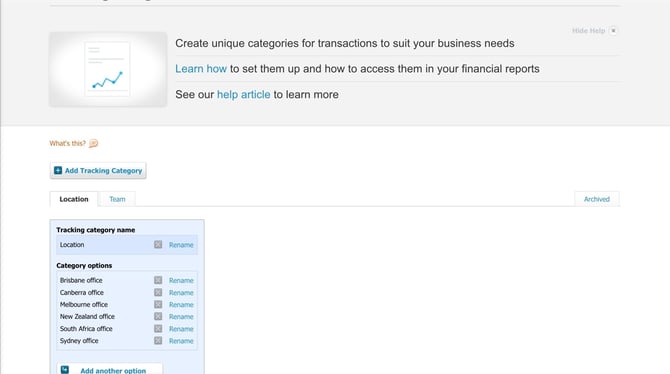
2. Click Add Tracking Category and Category Options. You can set up the Tracking Category and the Category options to your specifications. For more information, click "What's this?" within Xero.
3. Navigate to your Archa app and click on Integrations. Then select Xero from the integration options.

4. If your Xero Integration is enabled, Xero Tracking Categories are automatically fetched along with the Xero Expense Category.
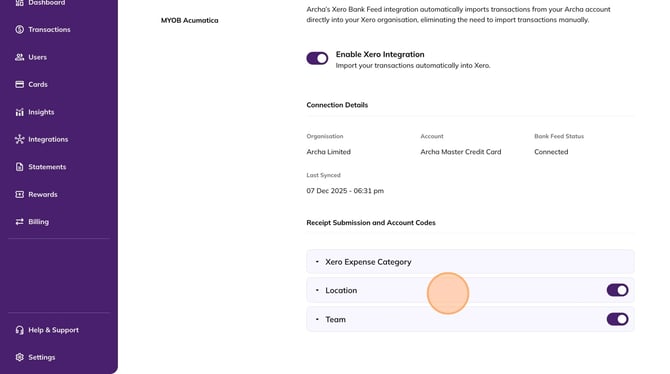
By default, all tracking categories are enabled. You can enable or disable the Xero Tracking Category by clicking on the toggle button.
If you disable any Xero Tracking Category within Archa, it will not show as an option when uploading receipts.
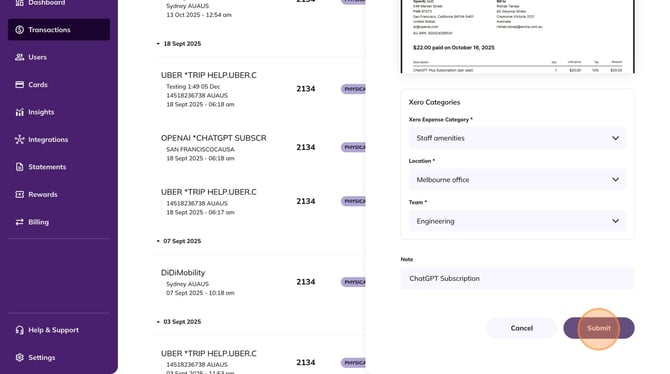
5. The Tracking Categories are now available for the cardholder to select using the dropdown menus.
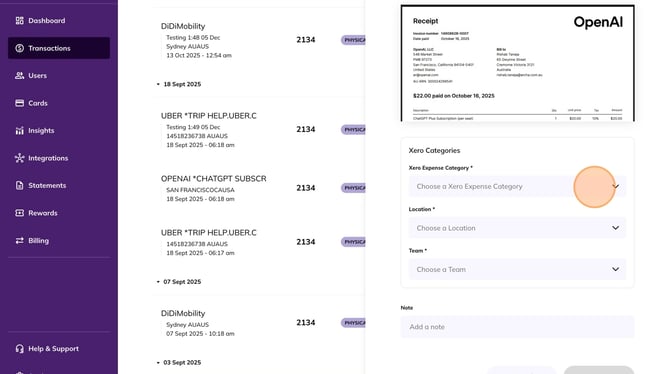
The user can click on each option menu to select the Xero Expense and Tracking Category from the dropdown menu. The user can also type and search the options during selection.
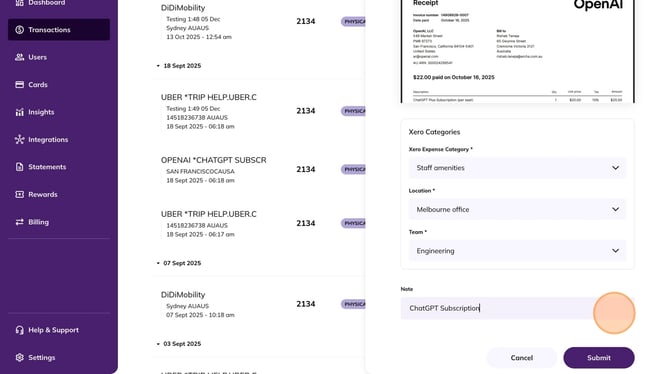
The user clicks on the Submit button to complete the receipt upload process.
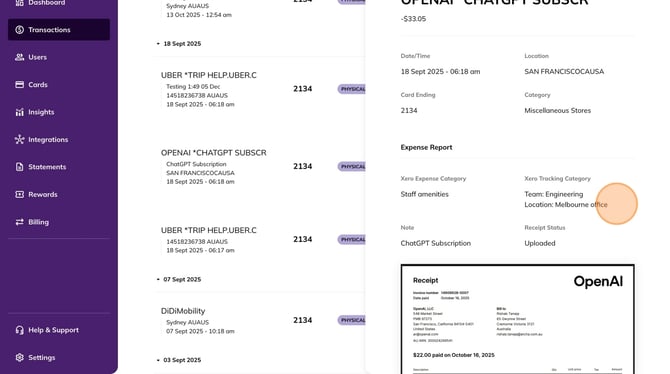
6.The selected Xero Expense and Tracking Category is shown in the transactions table view.

On clicking the transaction, a detailed pop-out view opens showing the selected Xero Expense and Tracking Category.
7. The Xero Tracking Categories are also included in the CSV exports. To export the transactions, click on the Export button and select the date range.

The CSV exports includes the Xero Tracking Categories (highlighted in yellow).
