1. Log in to your Archa app on https://app.archa.com.au/
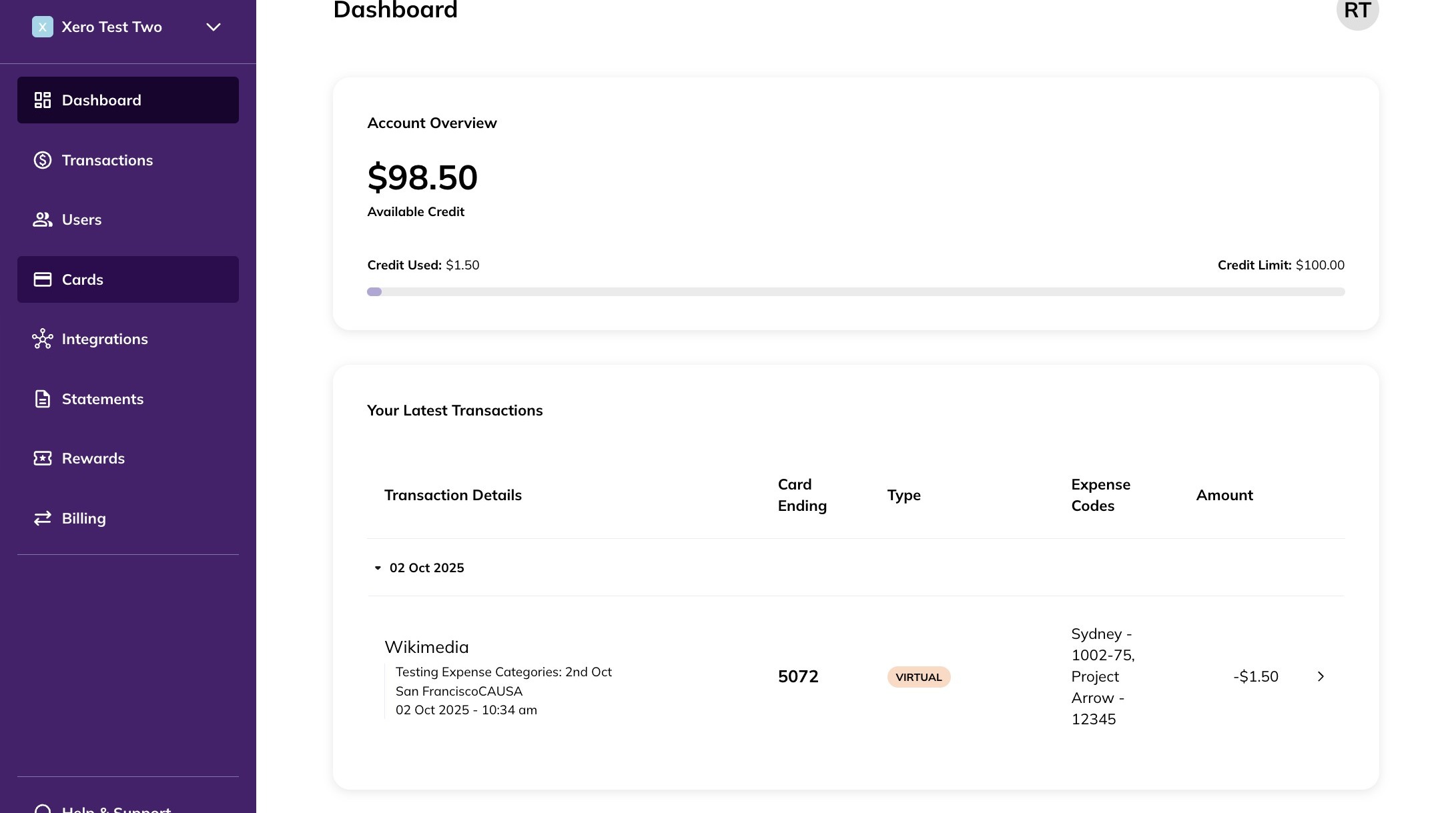
2. Navigate to the Cards tab.
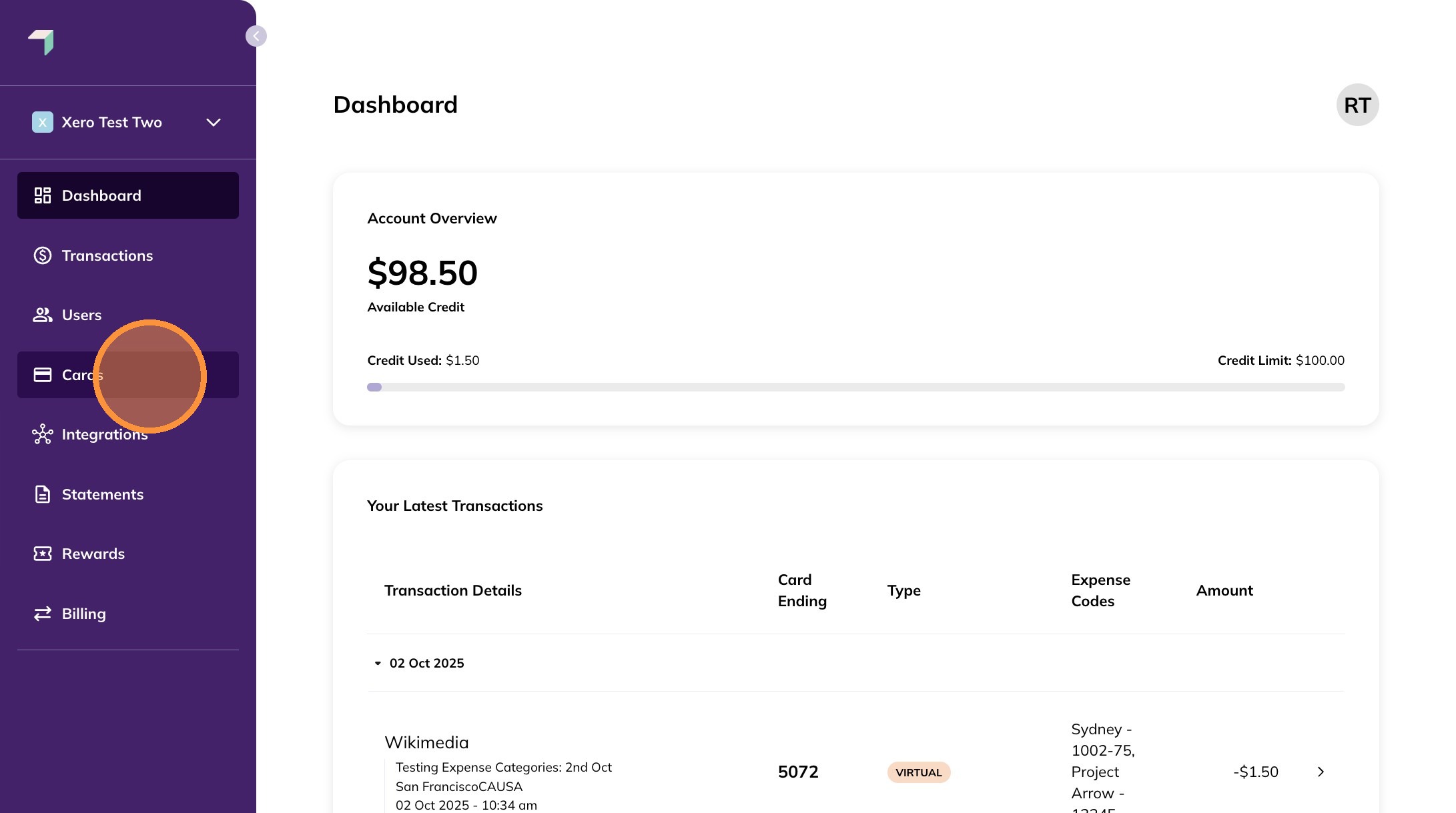
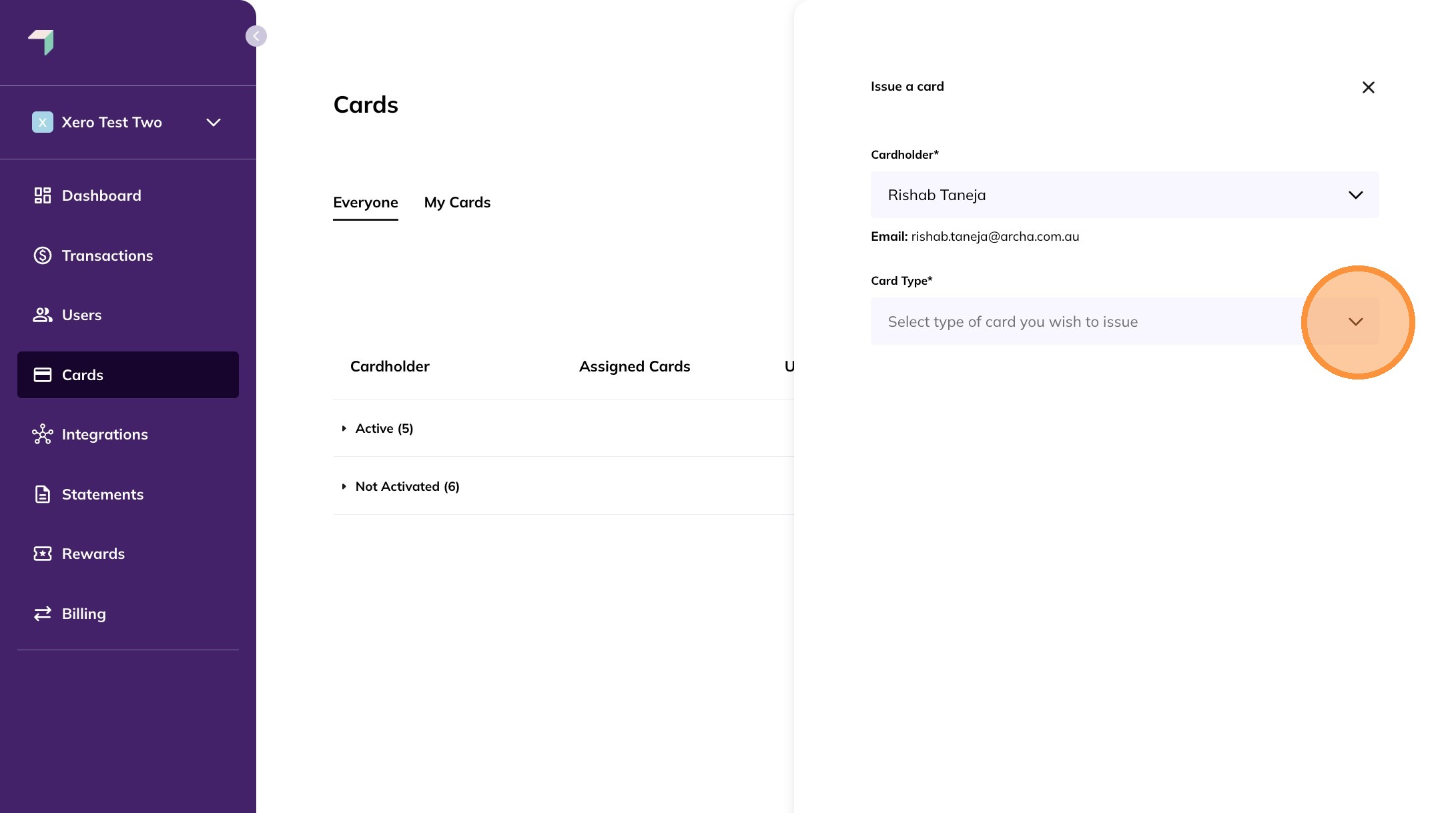
3. Click the Issue a card button.
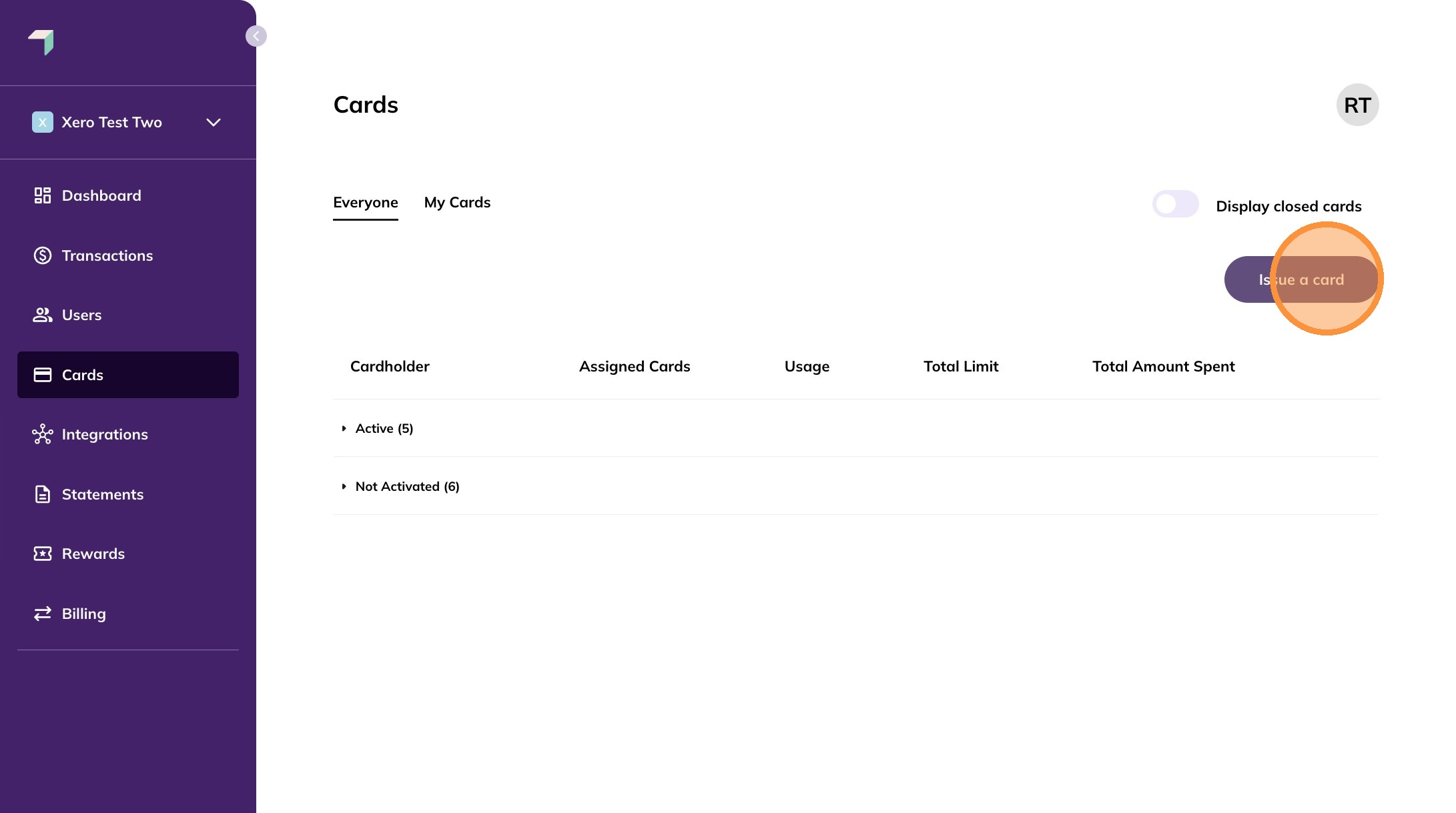
4. Select the user you want to issue a card to.
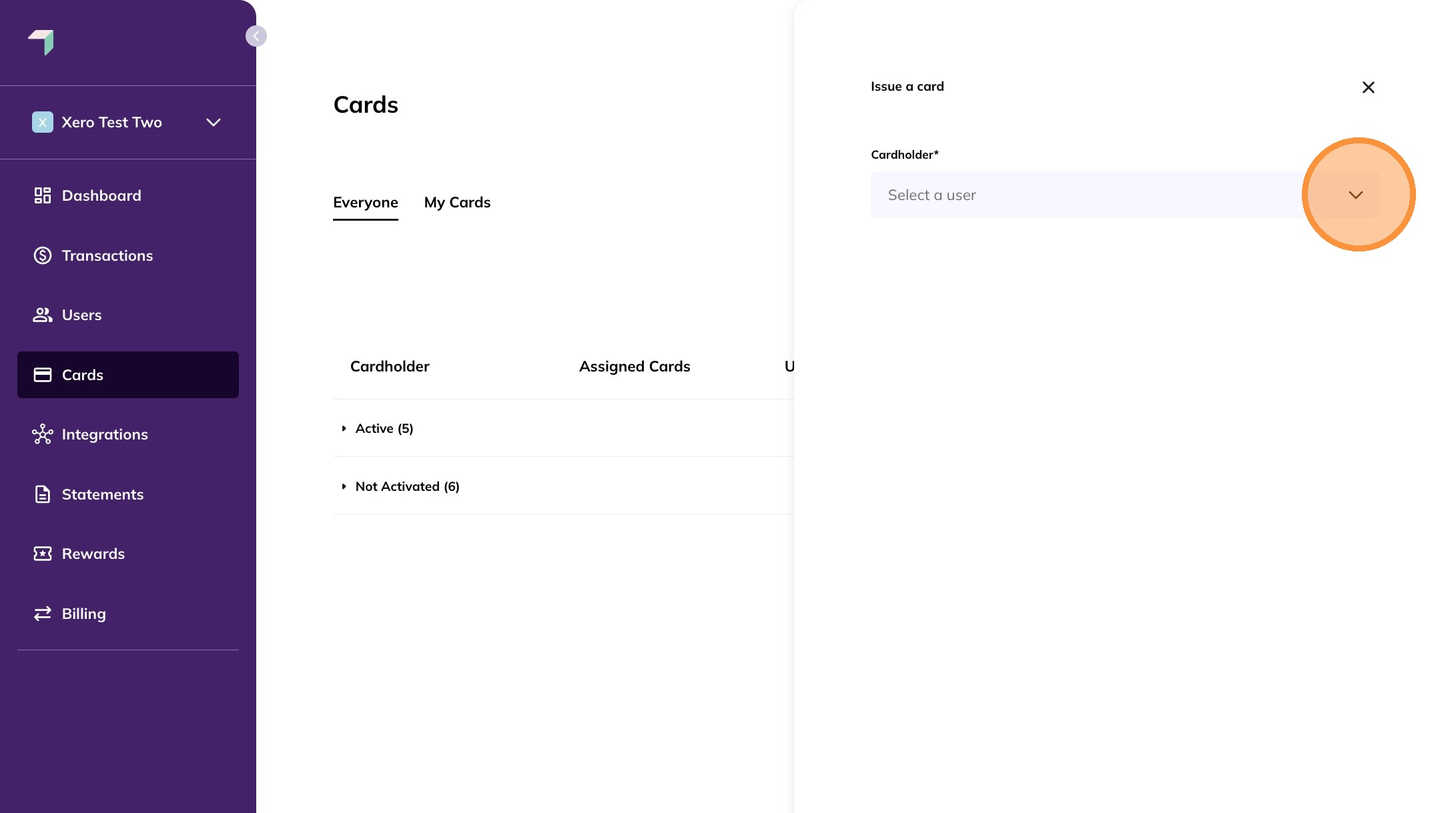
5. Select the card type as Physical, Virtual, Temporary-use virtual, or Single-use virtual.
Once selected, additional card controls will appear.
Note: These controls are optional and disabled by default.
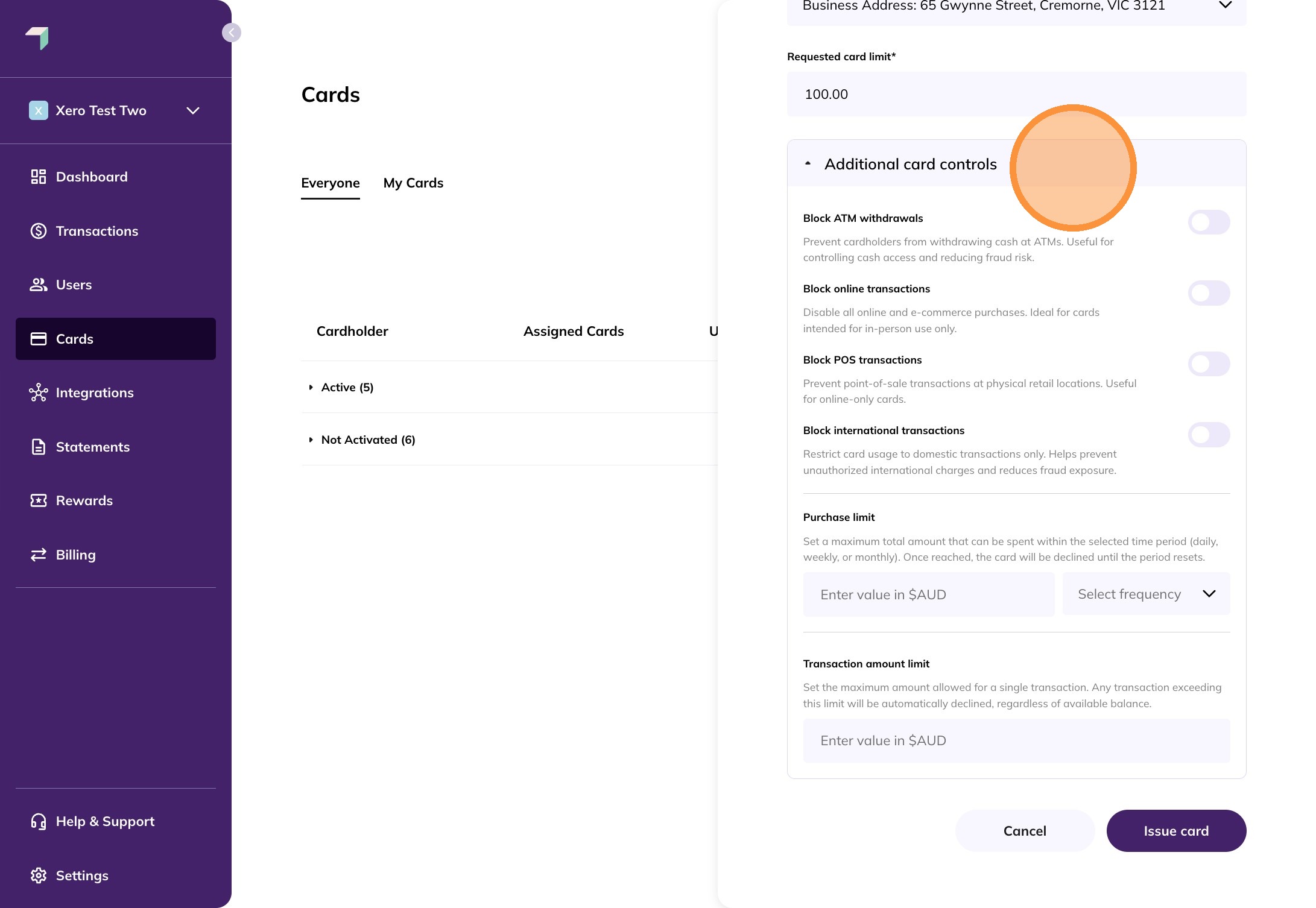
6. For physical cards, the following restrictions are available:
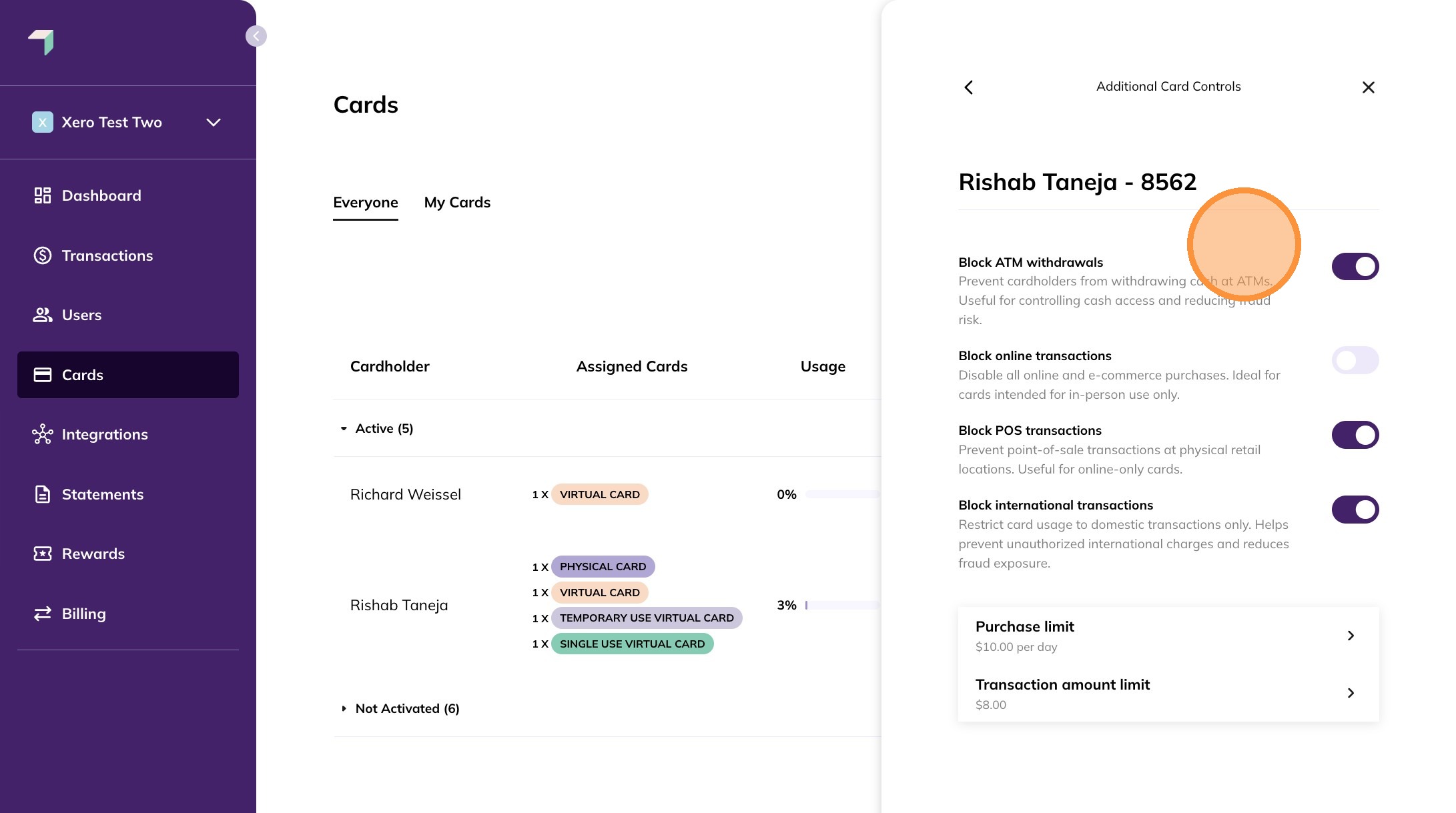
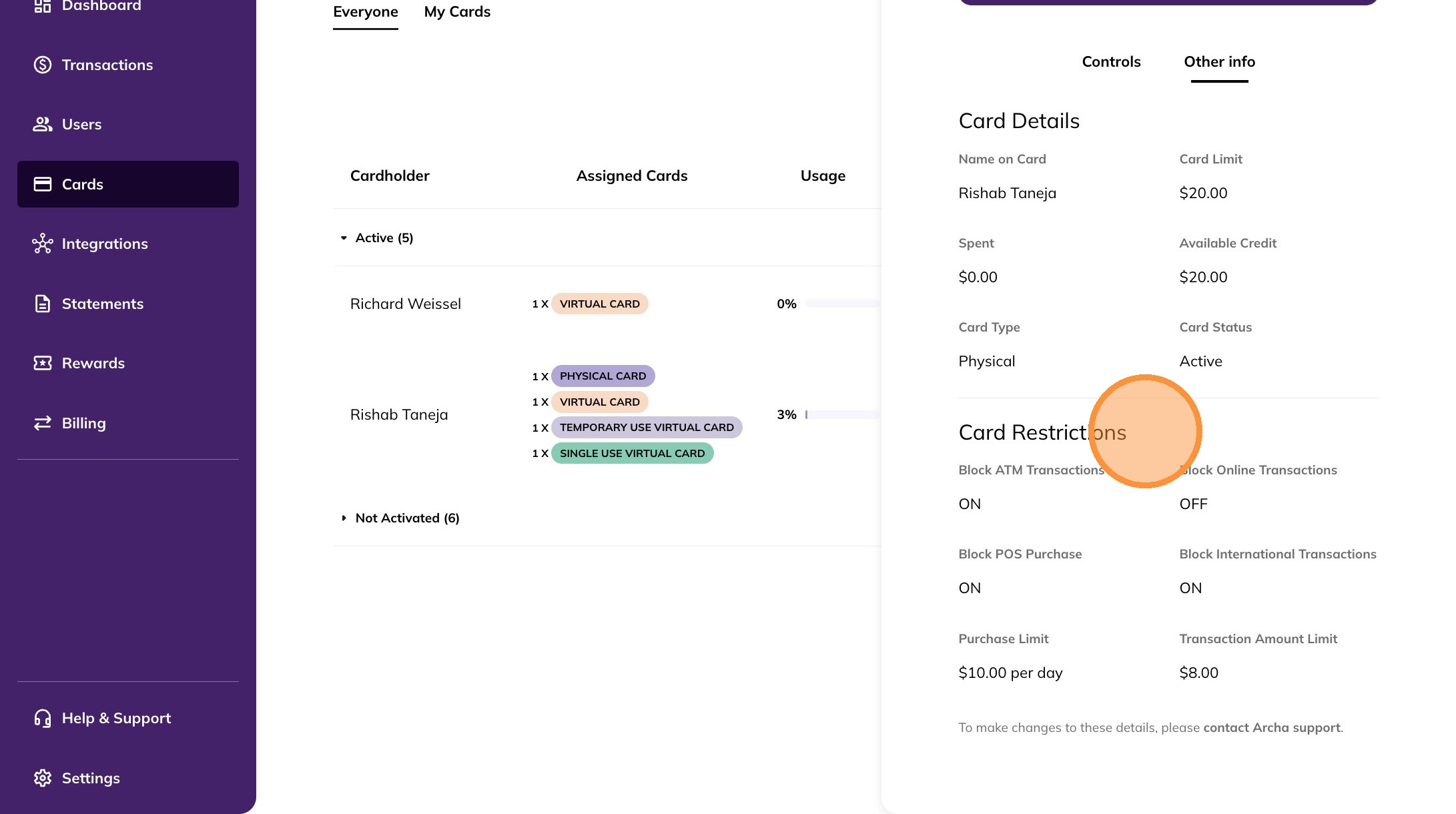
Block ATM withdrawals – Prevent cash withdrawals.
Block online transactions – Disable e-commerce purchases.
Block POS transactions – Prevent in-store purchases.
Block international transactions – Restrict overseas usage.
Purchase limit – Set a spend cap per period.
Transaction amount limit – Set a per-transaction cap.
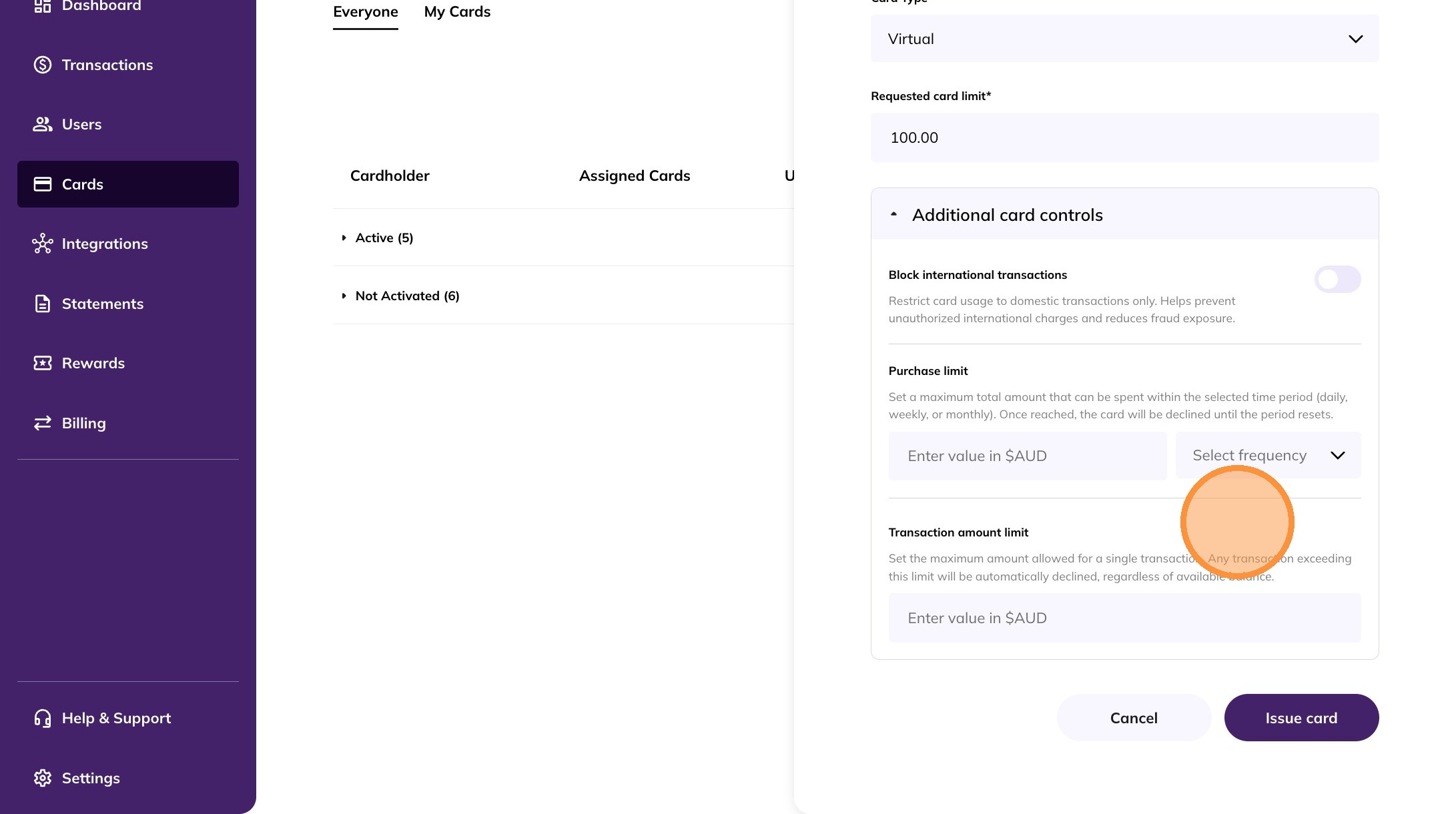
7. For virtual and temporary-use virtual cards:
Block international transactions
Purchase limit
Transaction amount limit
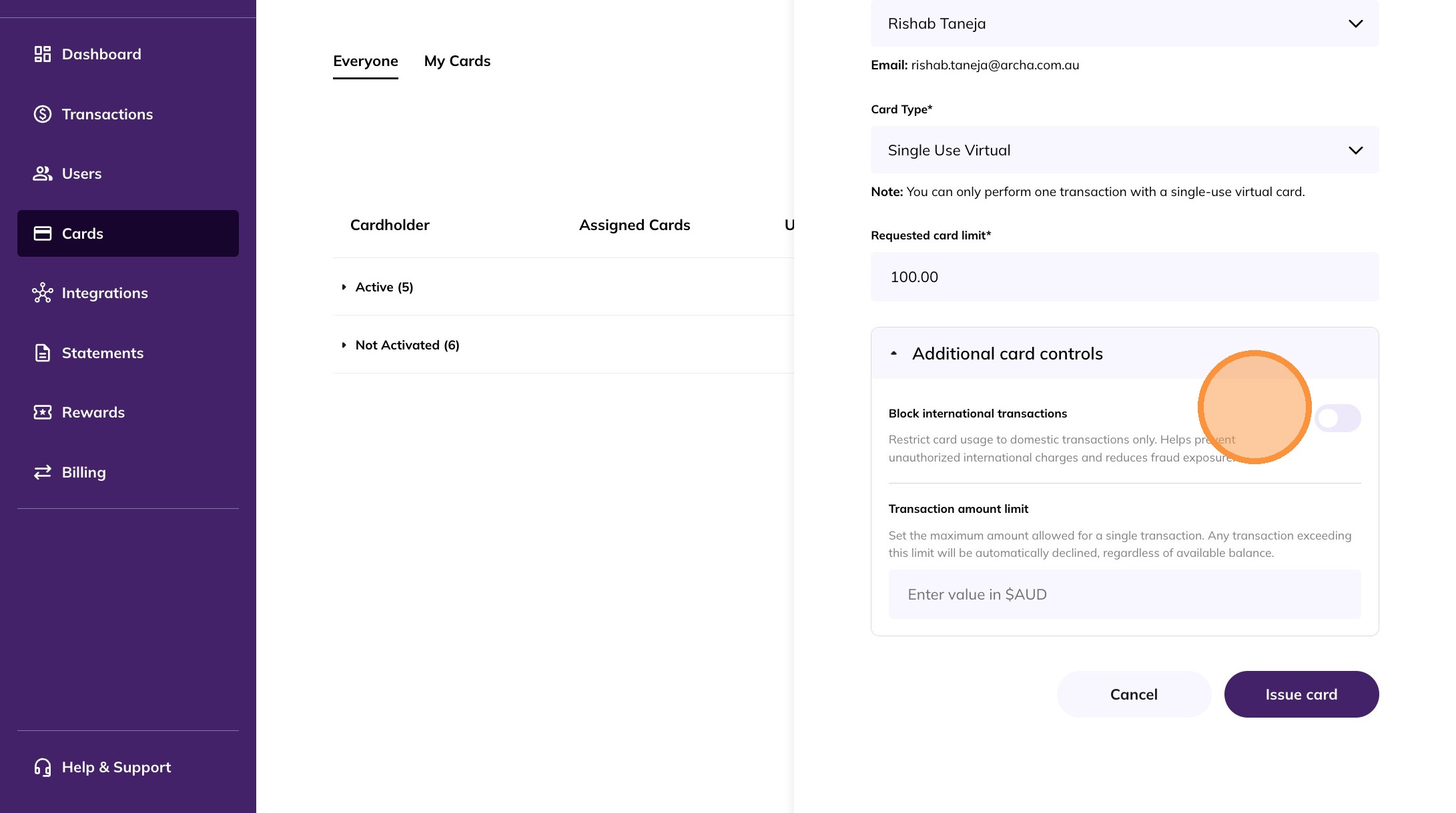
8. For single-use virtual cards:
Block international transactions
Transaction amount limit
Manage Card Restrictions
9. Go to the Everyone tab on the Cards page.
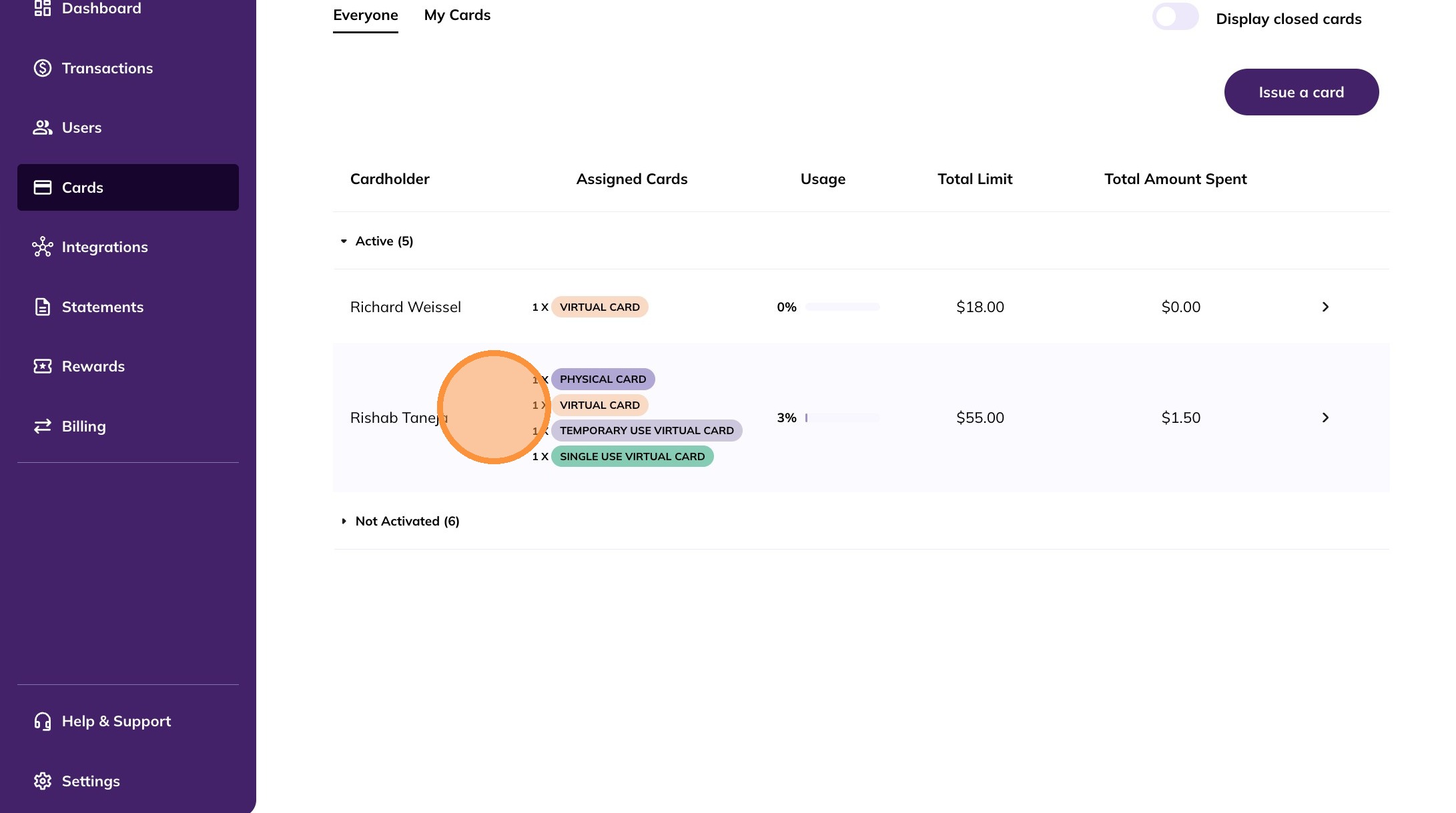
10. Select the user and the card you want to manage.
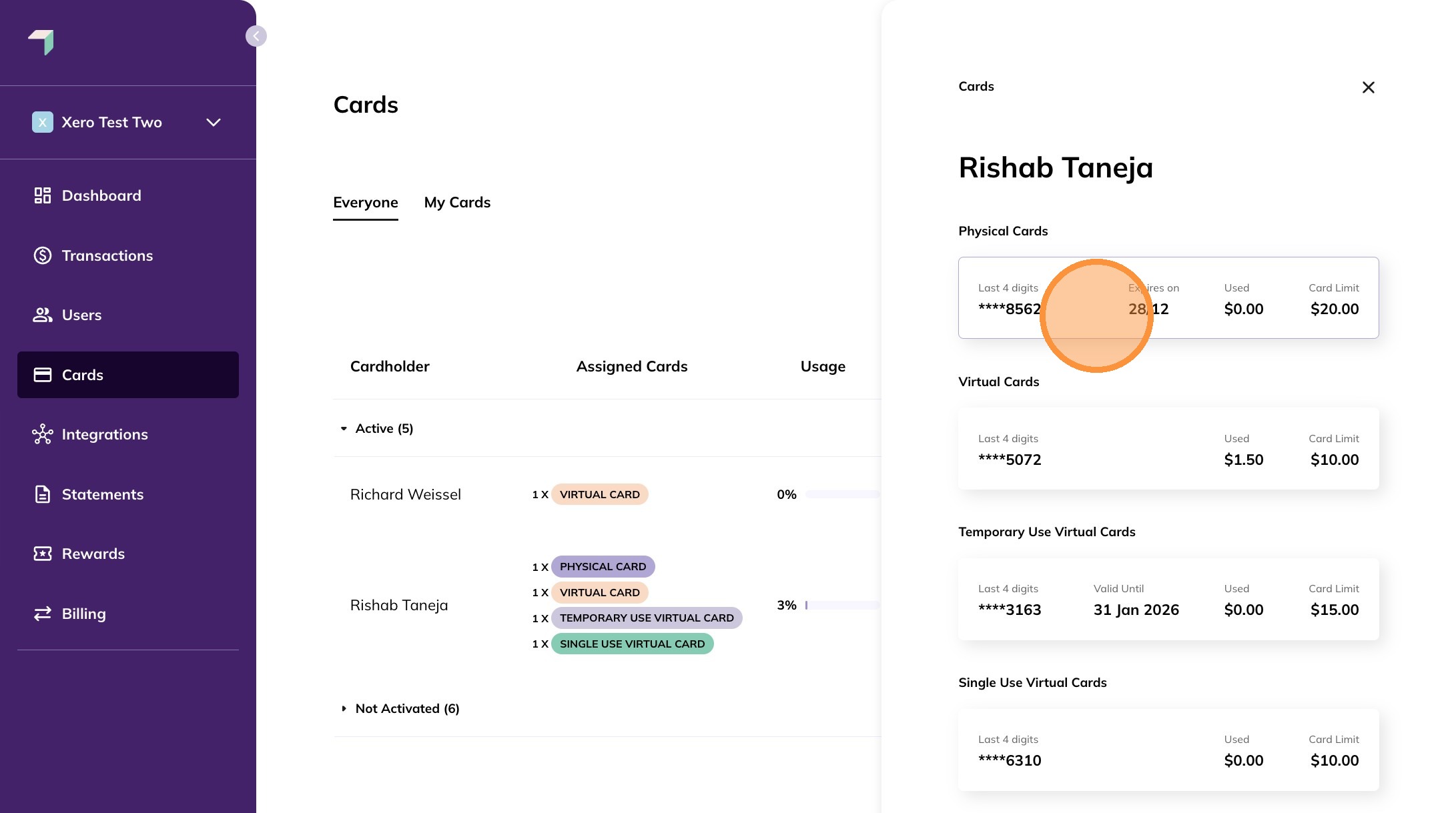
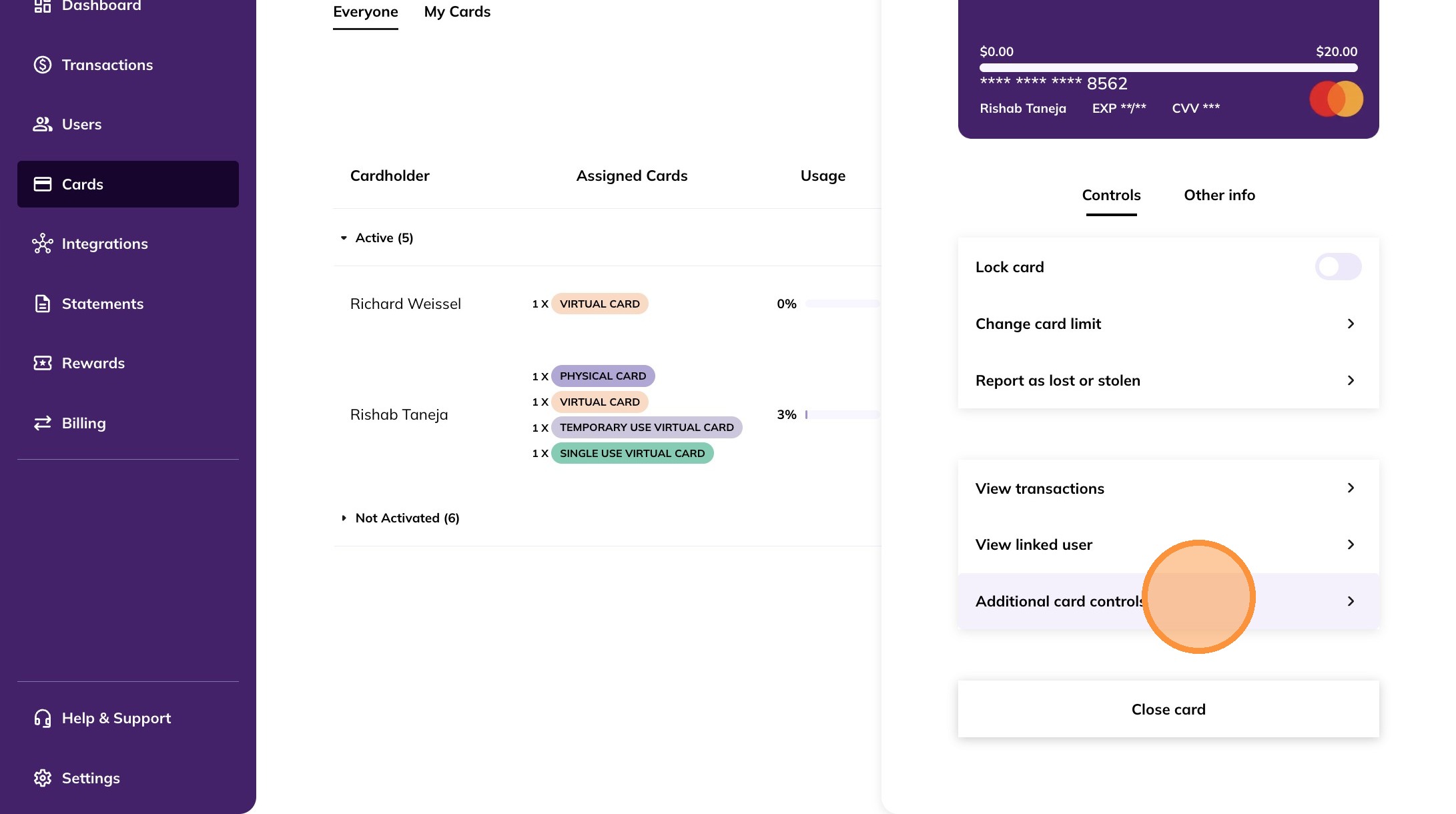
11. Click Additional card controls.
12. Use the toggles to turn restrictions ON or OFF.
Update or remove purchase and transaction limits as needed.
13. Click the Other info tab.
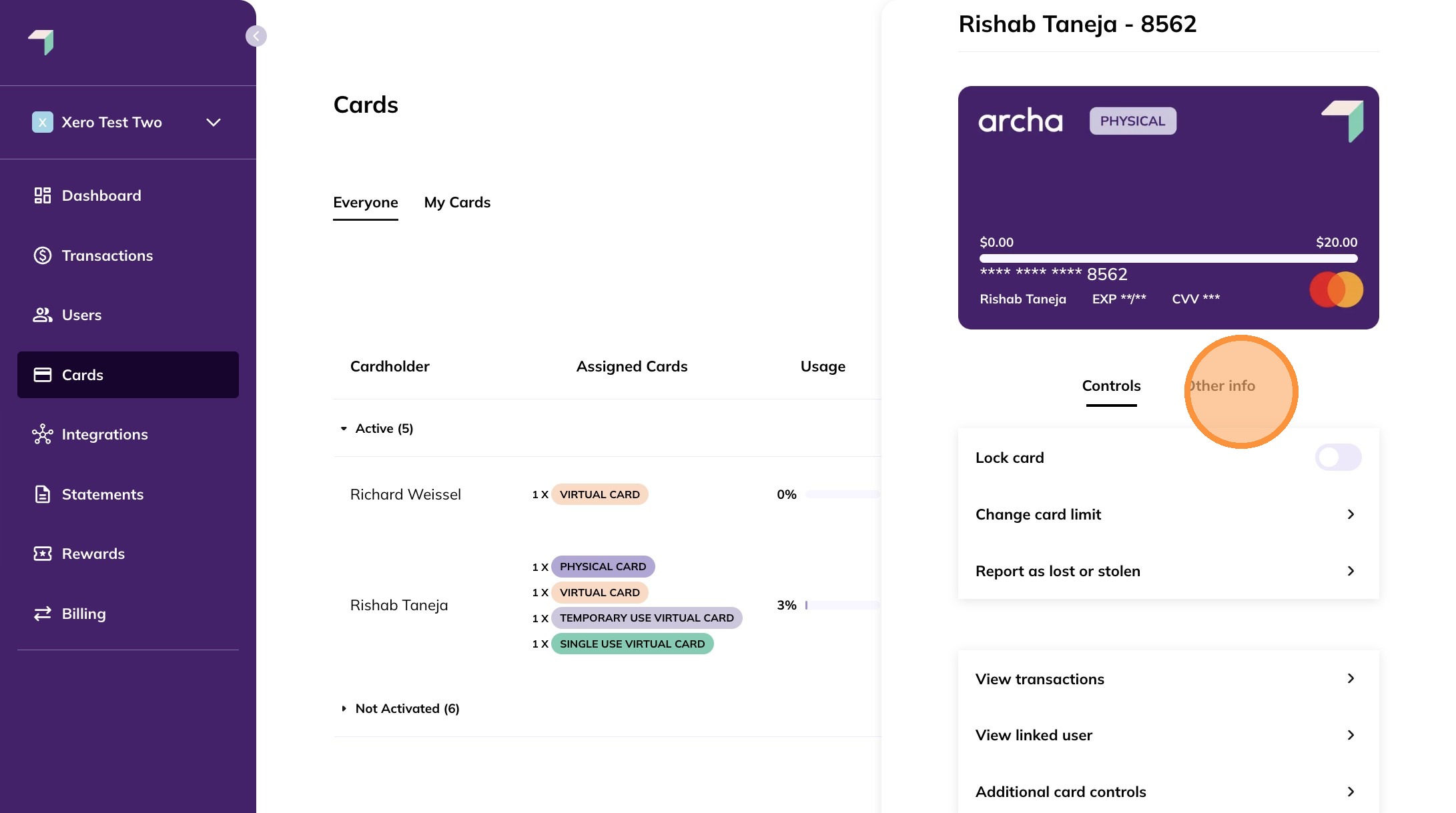
14. Review the status of all card restrictions.
Tip: Additional card controls are available to account owners and admins only. Cardholders can view restrictions in My Cards.